Bootstrap5 Blog Documentation
Features include:
- 2 page templates - one for blogs, tags, and authors and one for blog posts.
- 3 Complete blog layouts - selected on the blog page - "cards", "rows", and "full"
- Separate sidebars for the blog listing and blog post pages.
- Supports tags, authors, and multiple blogs.
- CTAs on both the listing and details pages.
- Supports the Marketpath CMS Free plan - tags, authors, and blog posts work even when they do not have their own pages.
- Multilingual friendly. All visible text is customizable.
- Numerous customization options for both the blog listing and blog post pages.
- Simplified blog post settings for easier blog post creation - most configuration occurs on the blog page - with the option to further customize individual posts if desired.
- And more...
Cards Layout
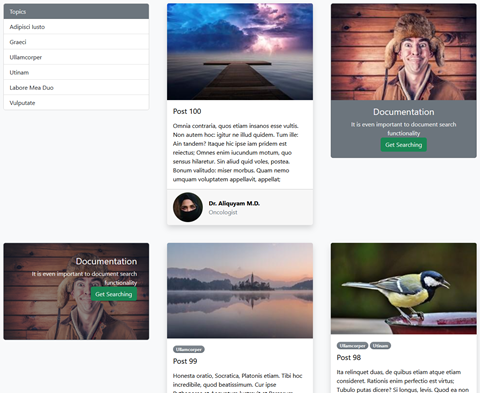 Displays blog posts as bootstrap cards. Images are displayed above the tags, title, and summary. Authors are displayed in the card footer.
The tags and authors may be enabled or disabled in the layout settings, or may be disabled for specific posts using overrides on the blog post page.
The cards layout does not have a sidebar, but does support listing the blog topics in the first card as well as displaying CTAs mixed in with the blog posts.
CTAs for the cards layout are positioned by index and may be customized on each site. If there are more CTAs than positions specified then unused CTAs will not be displayed. If there are more positions than CTAs specified then additional positions will be ignored.
Rows Layout
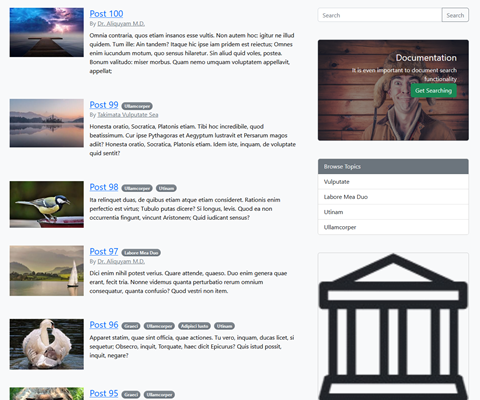
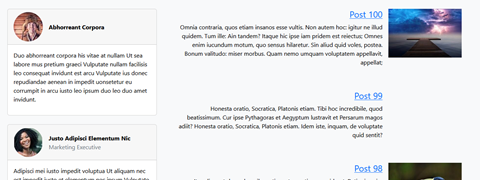 Displays a simple listing of blog posts. Images are displayed to the side of the title, tags, authors, and summary.
Images may be excluded from the list layout, or may be displayed to the left or right of the blog posts. For blog posts that do not have images, you may provide a fallback image, leave it blank to maintain alignment with other blog posts, or allow the rest of the blog post to take the full row.
Another useful feature is the ability to customize the alignment of blog posts - which makes it easier to maintain visual balance by right-aligning the text when the images are displayed to the right of the blog posts.
The tags and authors may also be enabled or disabled in the layout settings, or may be disabled for specific posts using overrides on the blog post page.
The sidebar may either be disabled (none) or displayed to the left or right of the blog posts.
Sidebar options for the rows layout include:
- Show or hide a searchbar at the top of the sidebar (searches blog posts on the page)
- Show or hide topics - which may be manually selected or may default to the first 20 tags on the site
- Show or hide featured authors - which may be manually selected or may default to the first 5 on the site
- Display CTAs in the sidebar. If CTAs have been created for the blog, one will be displayed before the topics, before each author, and at the bottom of the sidebar until all CTAs have been displayed.
- Additionally, if the blog posts are filtered (eg: by tag or author, or by searching), the sidebar will include a "All Blog Posts" button to return to the unfiltered page.
Full Layout
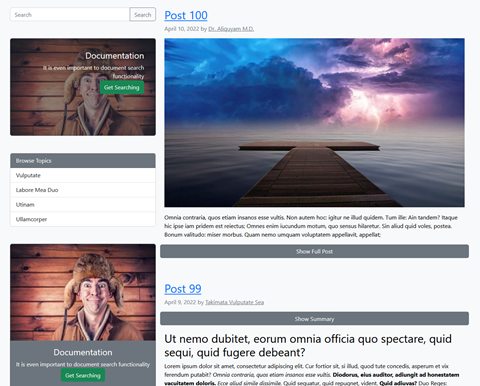 Displays full blog posts directly only the listing page. Includes the title, post date, authors, image, content, and tags.
Initially, each post only displays the summary (or the first 100 words of the content if no summary is provided). However, there is a "Show Full Post" button which, when clicked, toggles between the summary and full blog post content.
The tags and authors may be enabled or disabled in the layout settings. The dates may be disabled in the blog post settings. The tags, authors, and dates may all be enabled or disabled for specific posts using overrides on the blog post page.
Sidebar options for the full layout are the same as for the list layout.
Blog Post Page
The blog post page displays content related to a specific blog post - including the title, post date, image, content, tags, and authors. It also optionally displays a sidebar either to the left or the right of the blog post. You may also include a random or a specific CTA both underneath the blog post and toward the top of the sidebar.
Any of the title, post date, tags, or authors may be disabled on blog posts.
Tags and authors (when enabled) will be displayed in the sidebar if the page has a sidebar, and will be displayed directly in the post if the page does not have a sidebar.
The blog post sidebar is similar to the blog sidebar except that it has some different options. Each of the sidebar sections is optional:
- "Back to the Blog" button
- Sidebar CTA
- Blog Post Authors
- Blog Post "Topics" (tags)
- Browse Topics / Other Topics
- Recent Posts
By default, blog post options are determined by settings on the blog page, although the options may be overriden for sepcific blog posts by toggling "Customize Display Settings".
Furthermore, the CTA on each blog post page will be set randomly from the CTA options specified on the blog page. Users can define a specific CTA to use on a blog post page, or may disable the CTA under the blog post or in the sidebar for a specific post by create a CTA with "Type" set to "none".
Free Plan Compatible
The blog page doubles as a fallback for tags, authors, and even blog posts that do not have their own page. This makes is possible to keep your entire blog on your site using only a single page!
When configuring your blog page, just be sure to disable the search widget in the sidebar. This is necessary because content has to have a page in order to appear in search results - which will not work as expected for sites on the free plan.
Of course, just because tags, authors, and blog posts have working fallbacks does not mean that you cannot (or should not) create separate pages for them. You will have more flexibility, better SEO options, and ultimately better results if you create a page for each author, tag, and blog post as well as a page for your blog as a whole.
Customization
Most of the customization options for this package are built into the template directly as options in custom fields.
However, because this template is 100% built on bootstrap, it will automatically adapt to your bootstrap variables.
For sites that use the MPSS1 Bootstrap standards, this means you should only have to modify your "/_variables.scss" file with your color scheme and other override options.
Show Full
//in "/_variables.scss"

$bluejean: #35A7FF;
$rose: #FF5964;
$primary: $rose;
$secondary: $bluejean;